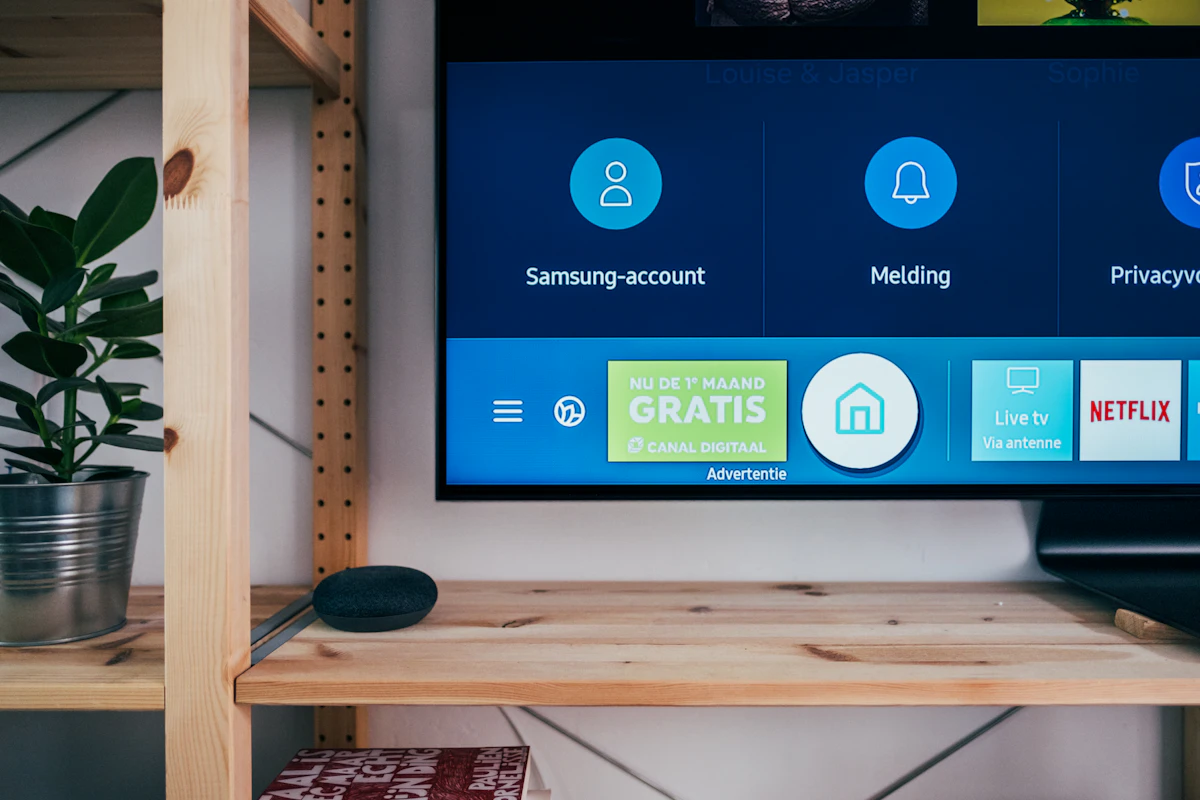
01 / Smart television
Smart TV setup
Most smart TVs use a player downloaded from the television’s official application store. The exact player name depends on the TV brand and region.
- Connect the TV to stable Wi-Fi or Ethernet.
- Open the TV’s official app store.
- Search for a reputable player and review its publisher, rating, and permissions.
- Install and open the player.
- Choose the login or playlist method supplied with your account.
- Enter the details carefully, save the profile, and allow the player to load groups and on-demand categories.
- Test several items and add favourites if supported.
02 / Amazon streaming
Fire TV setup
Install a compatible player through the Amazon Appstore, then add the access information supplied with your subscription.
- Connect Fire TV to your television and Wi-Fi.
- Open Find or Apps and search the official Amazon Appstore.
- Install a reputable compatible player.
- Select Add Playlist, Add Account, or the equivalent option.
- Enter the supplied login, portal, or playlist details exactly.
- Save the account, wait for categories to load, and test playback.
03 / Android television
Android TV setup
Android TV supports different players. Use Google Play whenever possible and choose one that supports the format supplied with your authorized access.
- Open Google Play Store on Android TV.
- Review the player’s supported input method and permissions.
- Install and open the player.
- Add the supplied playlist or account credentials.
- Let the player organize groups and test live and on-demand playback.
04 / Apple ecosystem
Apple TV setup
Use an App Store player that supports the access format included with your account and has a clear privacy policy.
- Complete Apple TV network setup.
- Open the App Store and install a reputable compatible player.
- Choose Add Playlist, Add Provider, or the equivalent option.
- Enter the exact URL, username, password, or portal details supplied.
- Save the profile, wait for the list to refresh, and test playback.
05 / iOS and Android
Phone and tablet setup
Install a player from the Apple App Store or Google Play. Check playback over Wi-Fi before using mobile data, especially for high-resolution streams.
- Connect to a reliable Wi-Fi or mobile-data connection.
- Install a reputable player from the official store.
- Choose the playlist or provider-login option.
- Enter the supplied details exactly and check for extra spaces.
- Save the profile and test playback.
06 / Windows and macOS
PC and Mac setup
VLC can open an authorized M3U network playlist on supported computers. A dedicated player may offer better categories and guide support.
- Download VLC from the official VideoLAN website.
- Open Media → Open Network Stream on Windows, or the network-stream option on Mac.
- Paste the complete authorized playlist URL.
- Click Play and open the Playlist view to browse entries.
- If playback buffers, close high-bandwidth apps, test Ethernet, or choose a lower quality when available.